
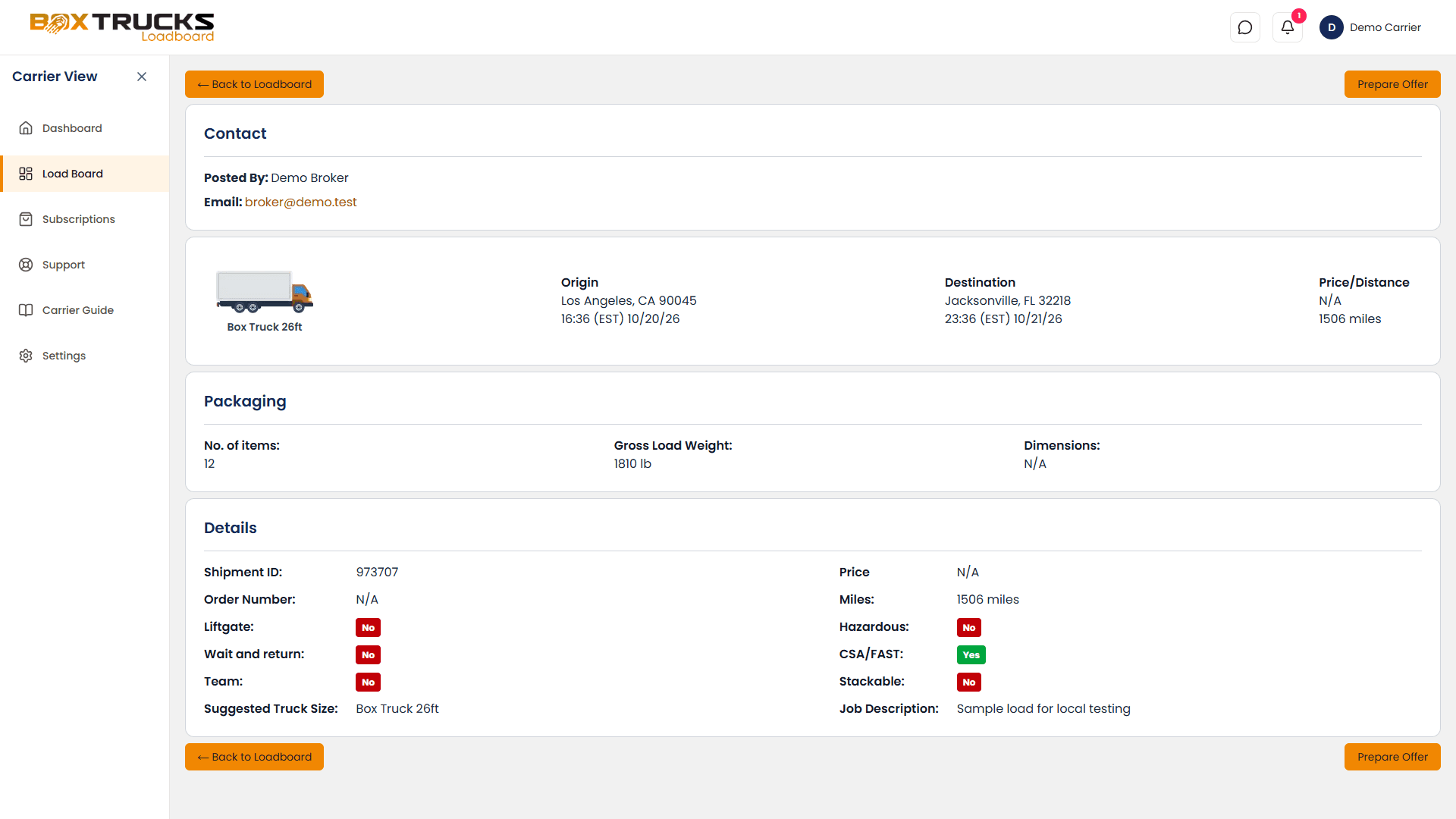
When you select View from the Loadboard, Box Trucks Loadboard opens the Load Information page. This page brings the available shipment information together in one place so you can understand the opportunity before preparing an offer.
Start with the page structure
The Load Information page is organized into four main areas: Contact, the Origin and Destination summary, Packaging, and Details. The Prepare Offer action is available at the top and bottom of the page so you can move forward once you've finished reviewing the opportunity.
Contact
Shows who posted the load and the contact email associated with the opportunity.
Origin & Destination
Shows where the load starts, where it ends, and the available pickup and delivery timing.
Packaging
Shows the number of items, gross load weight, and dimensions when those details are available.
Details
Contains shipment references, mileage, price information, equipment guidance, and additional load requirements.
Contact
The Contact section identifies the person or organization shown as the poster of the load and provides the email address associated with the opportunity. This is the contact information you can use when pursuing the load.
- Posted By: identifies the party shown as posting the load.
- Email: shows the contact email associated with the load.
Origin and Destination
The Origin and Destination section gives you the basic movement of the shipment. Review both sides together rather than looking at the pickup and delivery independently.
Origin
Shows the pickup city and state along with the listed pickup date and time.
Destination
Shows the delivery city and state along with the listed delivery date and time.
Price / Distance
Shows the available price information and listed trip distance. Some loads may display N/A when information is not available.
Timing
Compare pickup and delivery timing with your current location, vehicle availability, and ability to complete the trip.
Packaging
The Packaging section provides information about the physical shipment. These details can help you determine whether the load is appropriate for your equipment.
- No. of items: the number of shipment items listed.
- Gross Load Weight: the listed total gross weight of the shipment.
- Dimensions: the listed shipment dimensions when provided.
Details
The Details section contains additional information that can help you understand the shipment and its requirements. Some fields may show N/A when information was not provided for the load.
Shipment ID
The shipment identifier associated with the load. Use it when referring to the shipment in your communication or records.
Order Number
The order reference associated with the opportunity.
Price
Shows the listed price for the load when pricing information is available.
Miles
Shows the listed distance for the shipment.
Suggested Truck Size
Shows the suggested truck size for the shipment. Compare it with your actual equipment before pursuing the load.
Job Description
Provides additional information about the shipment when a description is available.
Load requirements and indicators
The Details section also includes several requirement or characteristic indicators. Review these before deciding whether the shipment is appropriate for your operation.
Liftgate
Shows whether the load is marked with a liftgate requirement.
Wait and return
Shows whether this requirement is indicated for the load.
Team
Shows whether a team requirement is indicated.
Hazardous
Shows whether the load is marked as hazardous.
CSA/FAST
Shows whether this requirement or indicator is associated with the load.
Stackable
Shows whether the shipment is marked as stackable.
What N/A means
You may see N/A in fields such as price, shipment ID, dimensions, or job description. This means that information is not available for that particular load. Do not treat an N/A value as a zero or assume a missing value means there is no requirement.
Read the page from top to bottom
A quick and consistent review makes it easier to avoid missing an important detail. You don't need to memorize every field. Use the page as a checklist and focus on the information that can affect your ability to take the load.
- Check who posted the load and the available contact information.
- Review the pickup location and pickup timing.
- Review the delivery location and delivery timing.
- Check the price and listed distance when available.
- Review the number of items, weight, and dimensions.
- Check the suggested truck size against your equipment.
- Review the listed load requirements and indicators.
- Read the job description when one is provided.
- Decide whether the complete opportunity fits your operation.
- Select Prepare Offer only when you are ready to pursue the load.
Prepare Offer is your next step
If the load passes your evaluation and you want to pursue it, select Prepare Offer. Box Trucks Loadboard will take you into the offer preparation process where you can enter the information needed for your offer and prepare the email to the broker.
What comes next
Now that you know how to read the Load Information page, the next step is understanding the numbers behind the opportunity. Rates & RPM explains how to think about the advertised rate and distance when comparing loads.